Sundial Classic FAQ
Q: What is the difference between Sundial and Sundial+?
Sundial is my original app first released in 2015. It had various optional in-app purchases to unlock additional features.
Sundial+ is a new app released in October 2026. It uses a subscription model to unlock additional features. Sundial+ shares some code from the original Sundial, but the core iPhone and iPad app is a complete rewrite to support more modern development and new features.
Development will now focus on Sundial+. Sundial will remain available to existing customers: your purchase is still valid, and you can continue using it and reinstalling it on compatible devices from your App Store purchase history. Over time, future operating-system or device changes may affect its compatibility.
Q: Can I continue using Sundial?
Yes. While I have removed Sundial from the App Store for download by new users, anyone who has downloaded it in the past can continue using it. Sundial will not be removed from your device(s). In fact, if you move to a new iPhone or iPad and use standard device migration, Sundial will be re-installed.
Note that future operating-system or device changes may affect Sundial compatibility. For example, Sundial doesn’t work particularly well on iPhone Duo: its codebase just wasn’t built to handle Duo’s different poses.
Q: Do I need to uninstall Sundial to try out Sundial+?
No. These are separate apps as far as the App Store and your device are concerned. Widgets and complications, for example, are unique to each.
Q: Can Sundial+ import my Sundial widgets, complications, or alerts?
Your Sundial settings, widgets, and complications will not automatically transfer to Sundial+.
But there is a special one-time alert configuration import. First, launch Sundial v10.17 or later. Then, the next time you launch Sundial+, it will prompt you to import your Sundial alert definitions.
Q: Who is the developer of Sundial and Sundial+?
My name is Mike Muegel. I am an independent software developer in Austin, Texas.
Q: Why did you create a new app and change to a subscription model?
Sundial has been a passion project of mine for the past 10+ years. But the core iPhone and iPad app was developed on some ancient tech and needed to be completely rewritten. I started this work over two years ago. As I worked on this, I realized the revenue from one-time purchases covered only a fraction of the time I spent on the app. I loved working on it, but needed it to “pay its way” a little more.
But just switching Sundial to subscription would be a nightmare: compatibility issues alone would be painful to me and users. So I decided to keep the original Sundial available to current users: if you like it, keep using it! No new features will be added, and support for new devices will be limited. Eventually, an operating-system or device change may prevent Sundial from working, but I’ll do my best to keep it chugging along. But the old tech backbone of the core app – built on Xamarin and written in C# for any of you devs out there – is fragile as heck.
My reboot with Sundial+ gives me a fresh foundation – written in Swift and SwiftUI – to add new features and support current and future devices better. Sundial+ 1.0 has a ton of new features and enhancements. Check them out.
Q: Do you offer any Sundial+ discount for existing Sundial customers?
Yes. If you purchased any Sundial extra within the last year, you can claim a free 12-month trial of the full Sundial+ subscription. If you purchased a Sundial extra over a year ago, you can claim a 3-month trial. Neither trial renews automatically, so no worries if you decide Sundial+ is not right for you or worth the subscription cost.
The offer should be presented to you automatically if you launch Sundial v10.17 or higher. If you saw it but did not act on it, you can bring it up by opening Sundial’s built-in settings:

And then touch the “Sundial+ Information” button to bring up the offer:
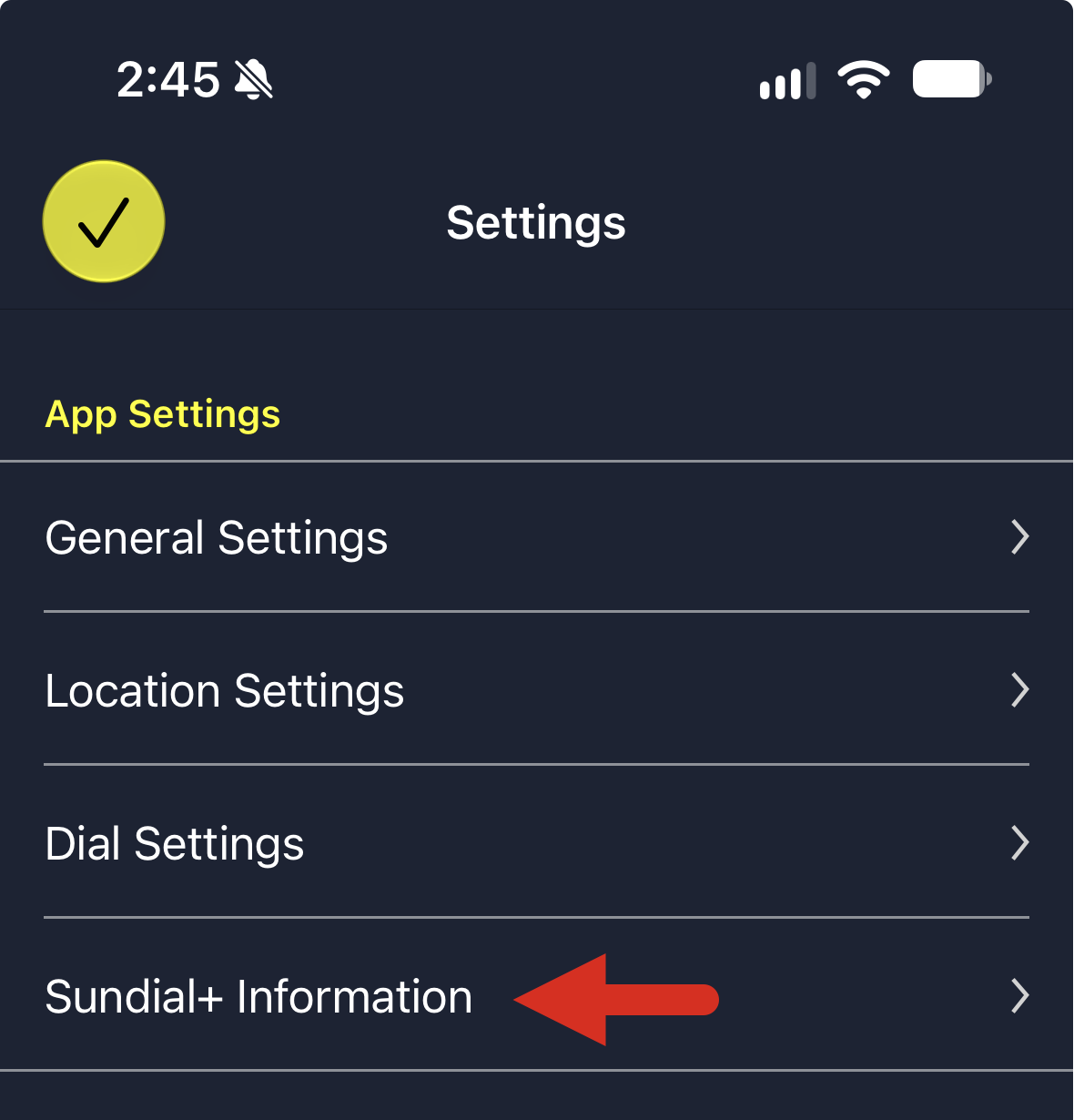
If you do not see this button, it means you have not purchased a Sundial extra in the past using the Apple ID you are logged into in the App Store.
Q: I need to re-install Sundial, but I can’t find it in the App Store. How can I re-install?
Sundial will no longer show up in App Store search since it has been “removed for sale.” But you can re-install it. Follow these steps.
Open the App Store app on your iPhone or iPad:
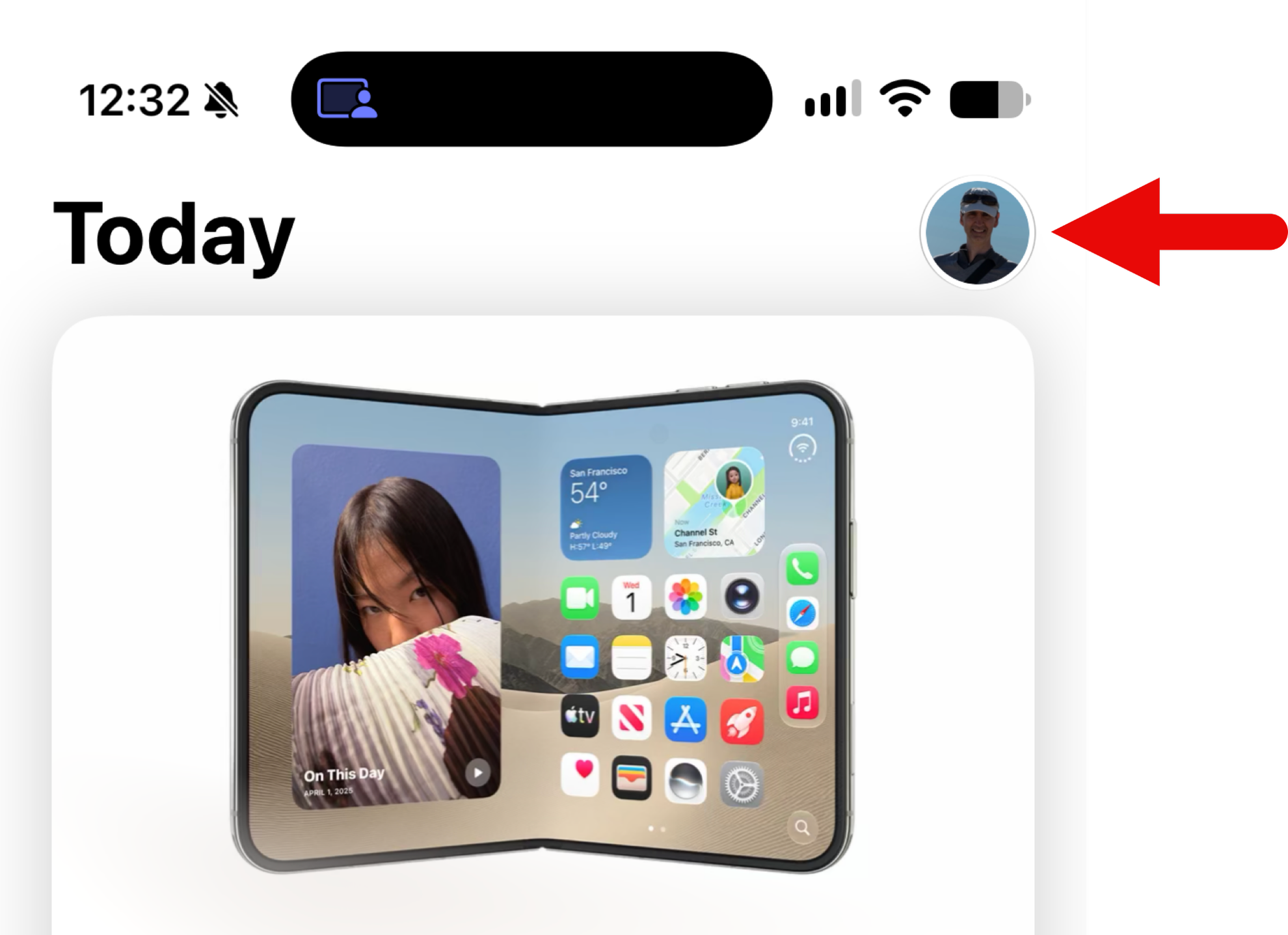
Once the App Store opens, touch your profile picture in the upper right hand corner of the screen:
Now touch “App & Purchase History”:
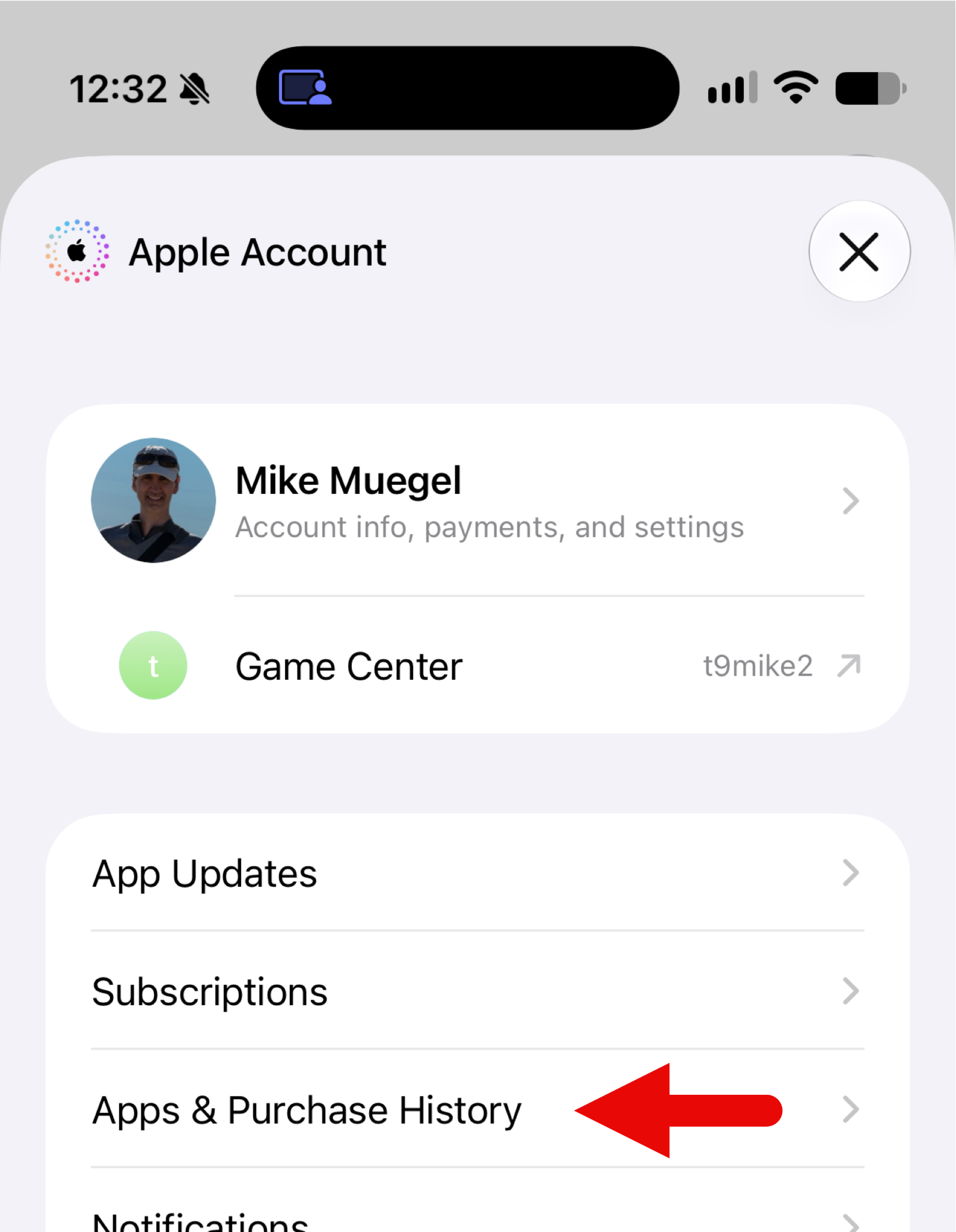
And then “Your Apps”:
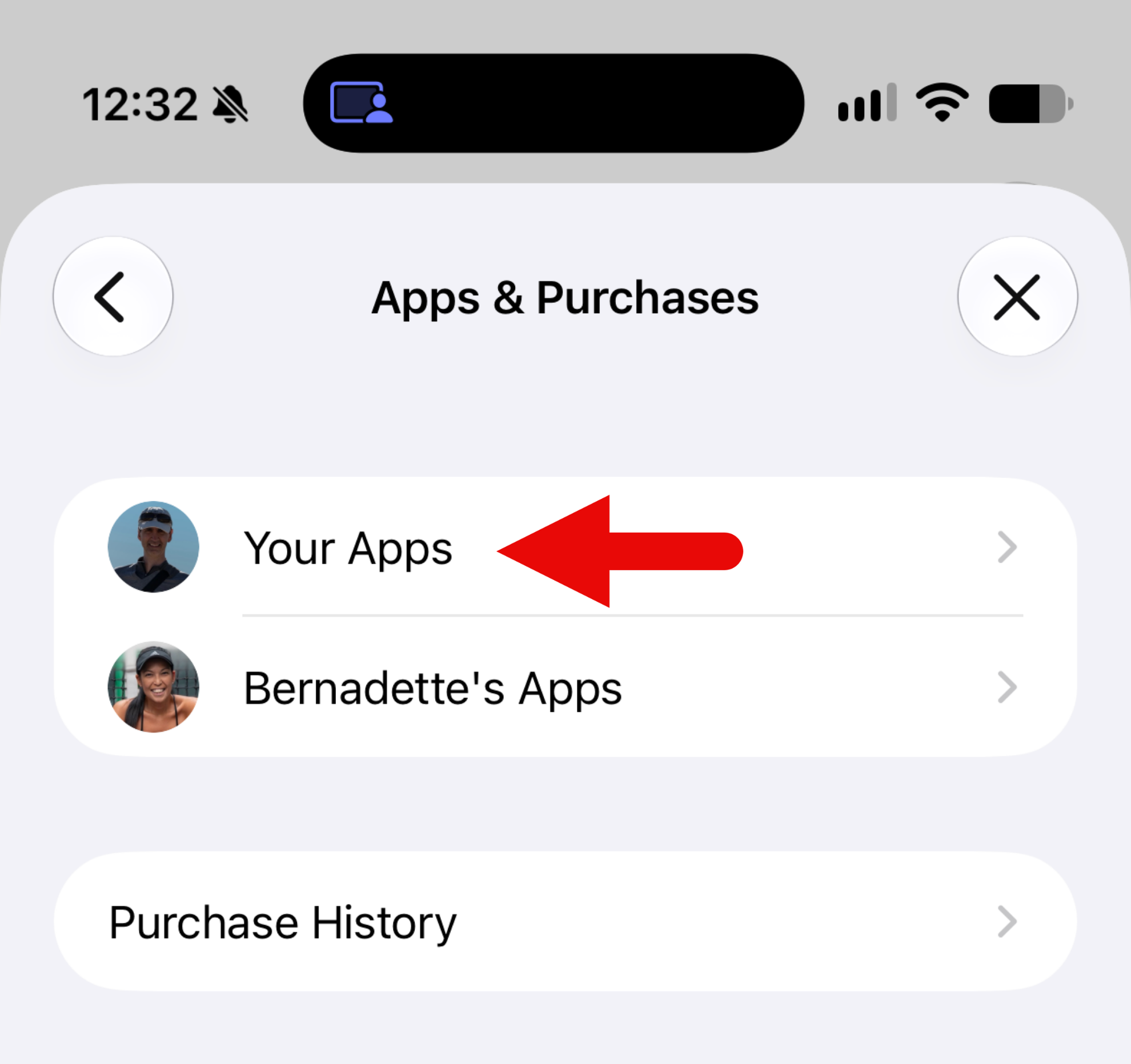
Now in the next screen search for sundial (1) and then touch the download button (2).
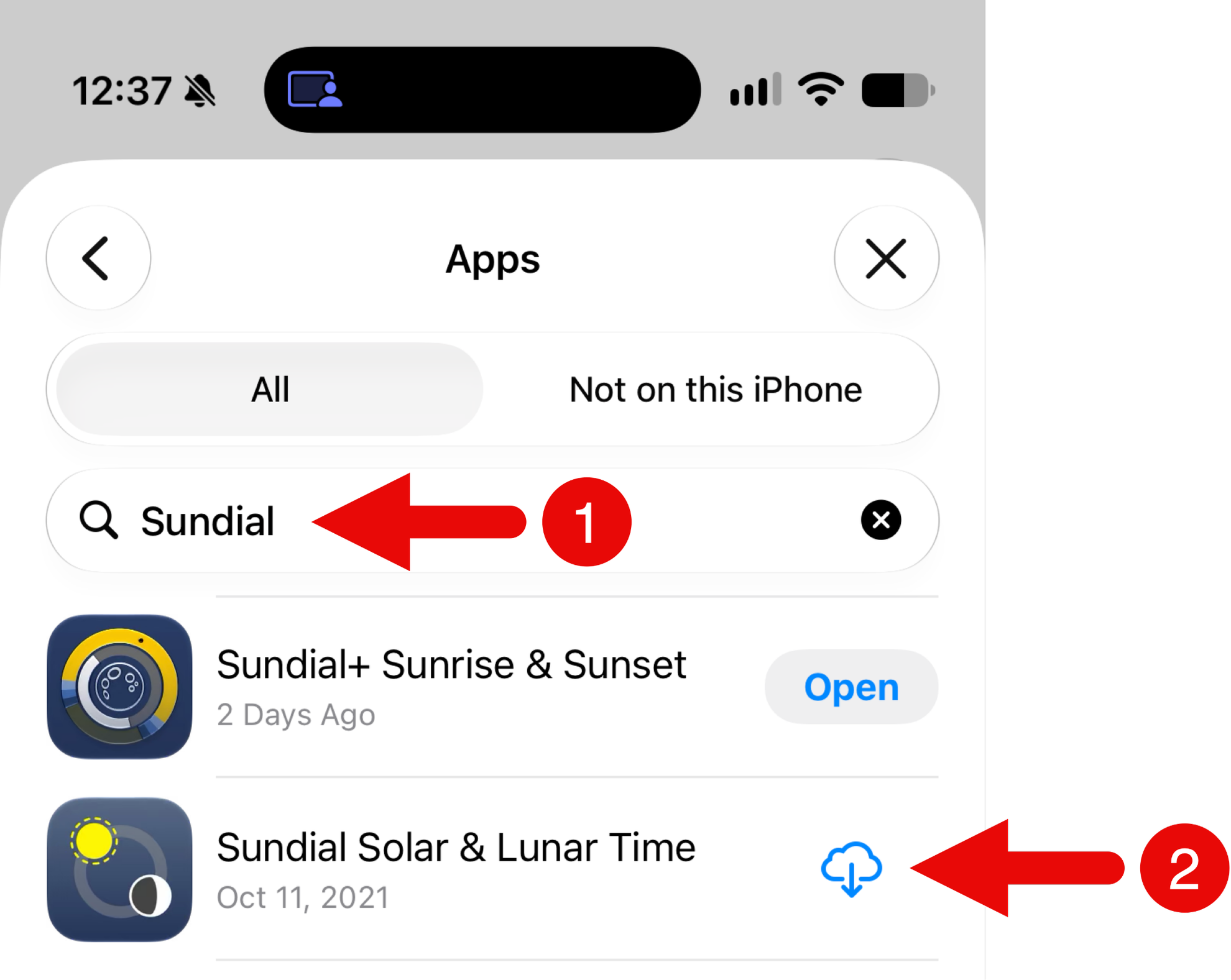
That’s it! You have downloaded Sundial to your iPhone or iPad.
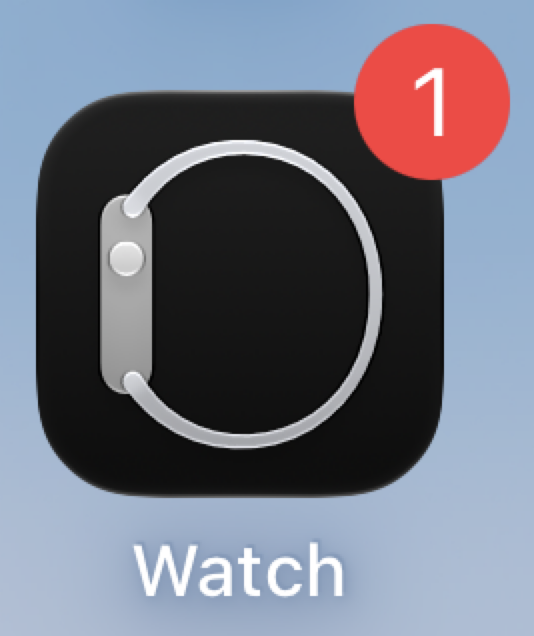
Sundial may not install on your Apple Watch automatically. To check this and install it manually if needed, open the Watch companion app on your iPhone:
Make sure the “My Watch” tab is selected (1), scroll all the way to the bottom and select “Apps” (2):
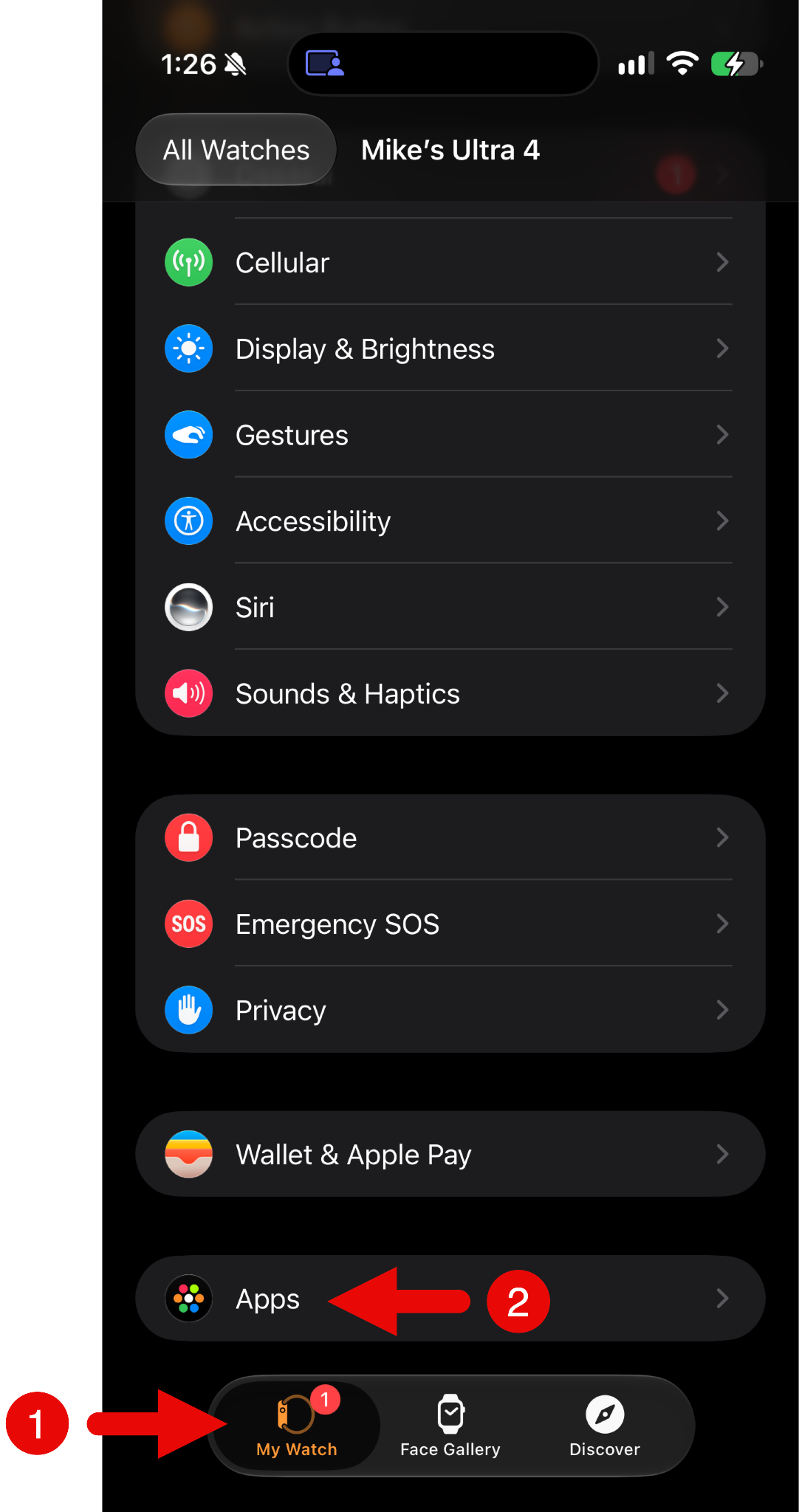
This brings up a list of installed Apple Watch apps (the first section labeled “Installed on Apple Watch”) and then a list of apps not yet installed on your Apple Watch (the second section labeled “Available Apps”).
If Sundial appears under “Installed on Apple Watch,” it should already be on your watch. If it appears under “Available Apps,” you can install it manually. In my case, Sundial was waiting to be installed:
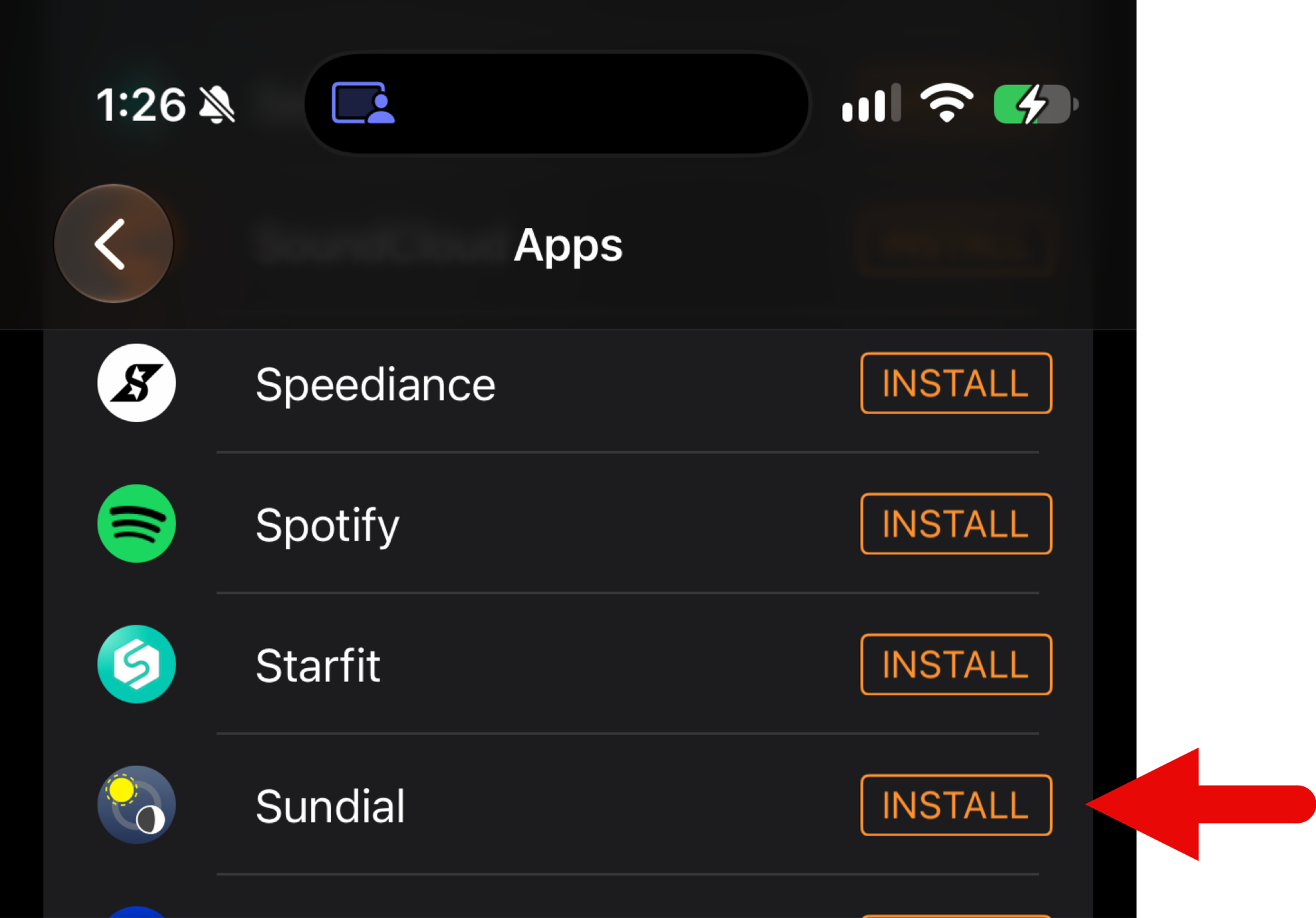
Touching the INSTALL button starts the install to your Apple Watch. This can take some time, so please be patient.
Q: How much does a Sundial+ subscription cost?
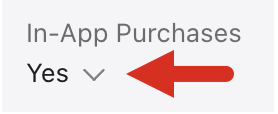
The cost varies by country/region. To see the cost, open the Sundial+ App Store listing. Find the "In-App Purchases" section and touch/click the down arrow to show pricing.